Test case generation
Dezycro generates test cases from your feature's TRD, and you review, toggle, and finalize them in the Validation Center.
The output becomes the feature's journeys — see The Workbook → Journeys.
Where validation cases live
- On a feature page, the right-hand panel's Tests tab lists that feature's validation cases, with Regenerate to run generation again.
- The Validation Center (Project → Validations in the left rail, or Validation Center on a project page) shows every case in the project as a grid, with pass rate and last run, and hosts the project's Personas tab. Switch projects with the project switcher in the header; Search validation cases finds cases by name. View in Validation Center on a feature's Tests tab jumps there.
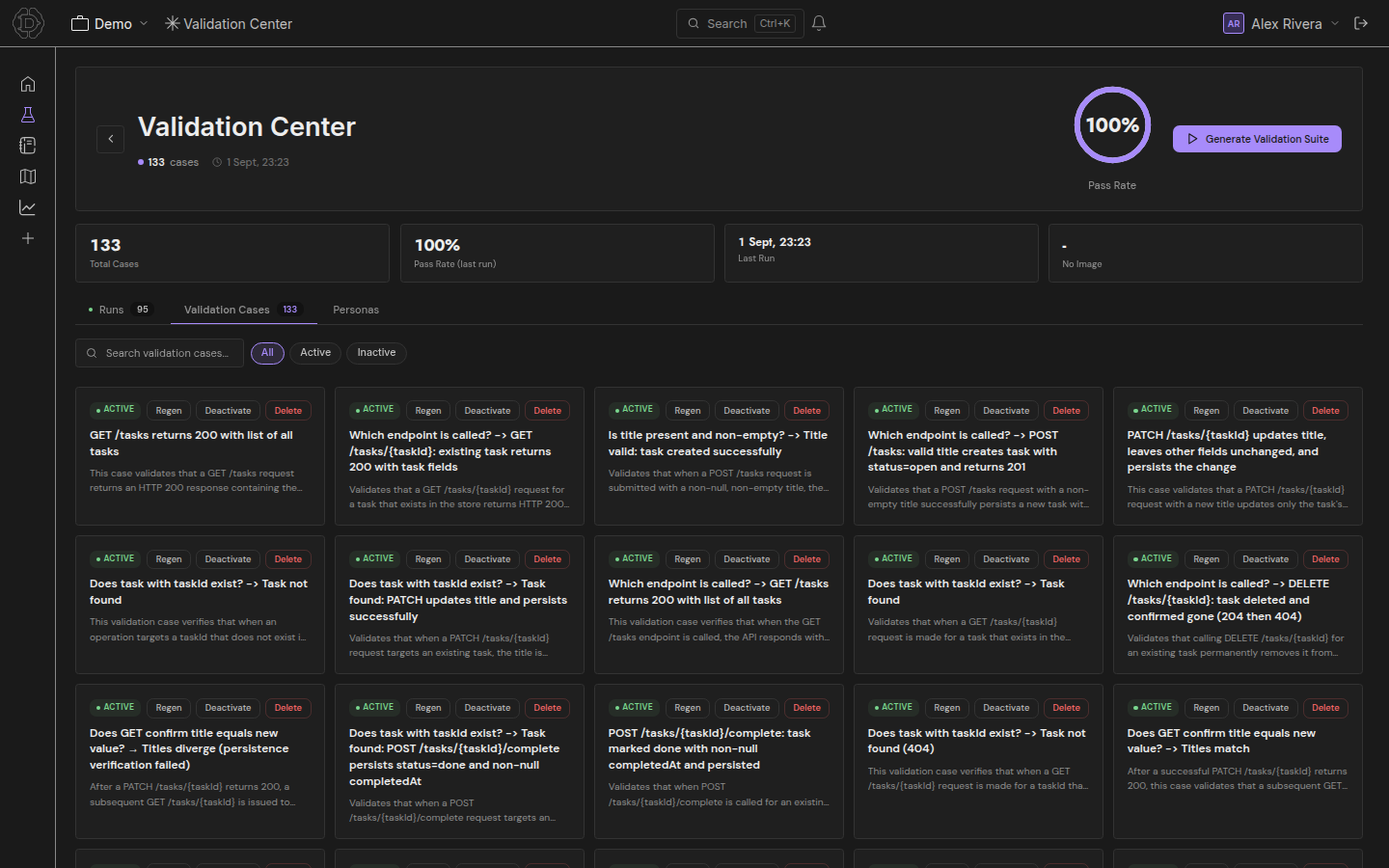
Generating test cases
- Start generation from the feature's Tests tab.
- The AI analyzes your feature's TRD + any ingested documents.
- Test cases are generated covering:
- Happy paths — standard user flows
- Edge cases — boundary conditions, unusual inputs
- Negative testing — invalid inputs, unauthorized access, error handling
- Integration points — interactions between features
Info
Generation runs as a background job and may take 1-3 minutes for a large TRD. A progress indicator shows the current phase. You can navigate away and come back; status is preserved server-side.
You can also generate via the MCP server: mcp__dezycro__generate_tests(workspaceId, projectId, featureId), then poll list_test_cases until the generated cases appear (the Dezycro CLI instead blocks on the build event).
Reviewing test cases
Generated test cases appear in a validation grid. Each test case includes:
| Field | Description |
|---|---|
| Name | A concise description of what the test verifies |
| Description | Detailed test scenario and steps |
| Linked intent | The TRD/PRD statement this test is grounded in |
| Status | Active or Inactive |
Toggling tests
- Active — included in verifier runs
- Inactive — excluded but preserved for later
Use Select All / Deselect All for bulk operations. Toggling is non-destructive — you can re-activate any test at any time.
Enforcement
Each journey has an enforcement state:
- ENFORCED — failure blocks the feature lifecycle from advancing to VERIFIED
- OBSERVED — logged but non-blocking (useful for nice-to-have coverage or in-progress journeys)
Set via the journey details panel.
Finalizing
When you're satisfied with the test selection, click Finalize. This:
- Marks the selected tests as Active
- Triggers verifier-binary generation
- Returns control to the feature page
You can also Continue Later to come back without finalizing.
Auto-baselines
For spec operations that no generated journey covers, Dezycro synthesizes lightweight auto-baseline checks straight from the OpenAPI spec. They give you cheap initial coverage, but they're treated as best-effort — they never reach the highest evidence level on their own.
When an auto-baseline matters enough to enforce fully, promote it (via mcp__dezycro__promote_auto_baseline, or from the journey details panel). Promotion turns it into a regular journey that participates in verifier execution with full enforcement weight.
Promotion to regression suite
Once a feature reaches VERIFIED — all enforced journeys passing — you can promote it to regression (feature page, or mcp__dezycro__promote_to_regression). This:
- Transitions the feature
VERIFIED → SHIPPED - Merges the feature's spec into the project baseline
- Recompiles the project's regression binary, which covers every SHIPPED feature
Pull the regression binary with mcp__dezycro__pull_regression_binary(projectId, platform) and run it on every CI build as your "must always pass" gate — same mechanics as the per-feature verifier, project-wide scope.