Knowledge Base connectors
Import documents from Confluence and Linear directly into your workspace's Knowledge Base. Imported documents become workspace-level grounding material that PRD/TRD authoring and chat retrieve from (with citations) — the same way uploaded documents do, but kept in sync with the source. Up to 500 items can be fetched per import run.
Everything lives in Workspace settings → Knowledge Base. The tab is always visible; a provider card is usable only where its OAuth integration is configured for your Dezycro environment — otherwise the card shows as not configured.
Workspace-level, not per-feature — and not the Agent Playbook
This is different from the Confluence connector, which imports a single page as one feature's PRD/TRD. Knowledge Base connectors import many documents as shared workspace knowledge. It's also separate from the Agent Playbook — the notebook of team rules your agents write to — which has its own Workspace settings → Agent Playbook tab.
Connecting a provider
Connections are per workspace. Each provider card offers Connect, Reconnect, and Disconnect:
- Open Workspace settings → Knowledge Base.
- Click Connect on the Confluence or Linear card. A consent window opens — approve access, and you're returned via the connector callback (
/connectors/callback). - The card now shows the connection and enables importing.
If a connection's granted scopes go stale (for example the provider changed what was authorized), actions fail with a reconnect required error — click Reconnect on the card to fix it.
Importing documents
Click Import (or Import more + once documents exist) to open the import wizard:
- Choose provider — Confluence or Linear.
- Choose containers — Confluence spaces, or Linear teams and projects.
- Fetch & classify — Dezycro fetches candidate documents and an LLM classifies each one (PRD, TRD, and so on). On the review screen you can filter by type and override any classification before continuing.
- Select documents — pick which candidates to import.
- Start import — the import runs in the background. Follow it from the bell in the header (Activity).
Safe to navigate away
Re-entering the wizard — a page refresh or navigating back — resumes your own active import job instead of erroring. A persistent progress indicator tracks the running import across navigation and ends in a completion notification: complete, complete with failures (with a retry option), or failed.
Managing imported documents
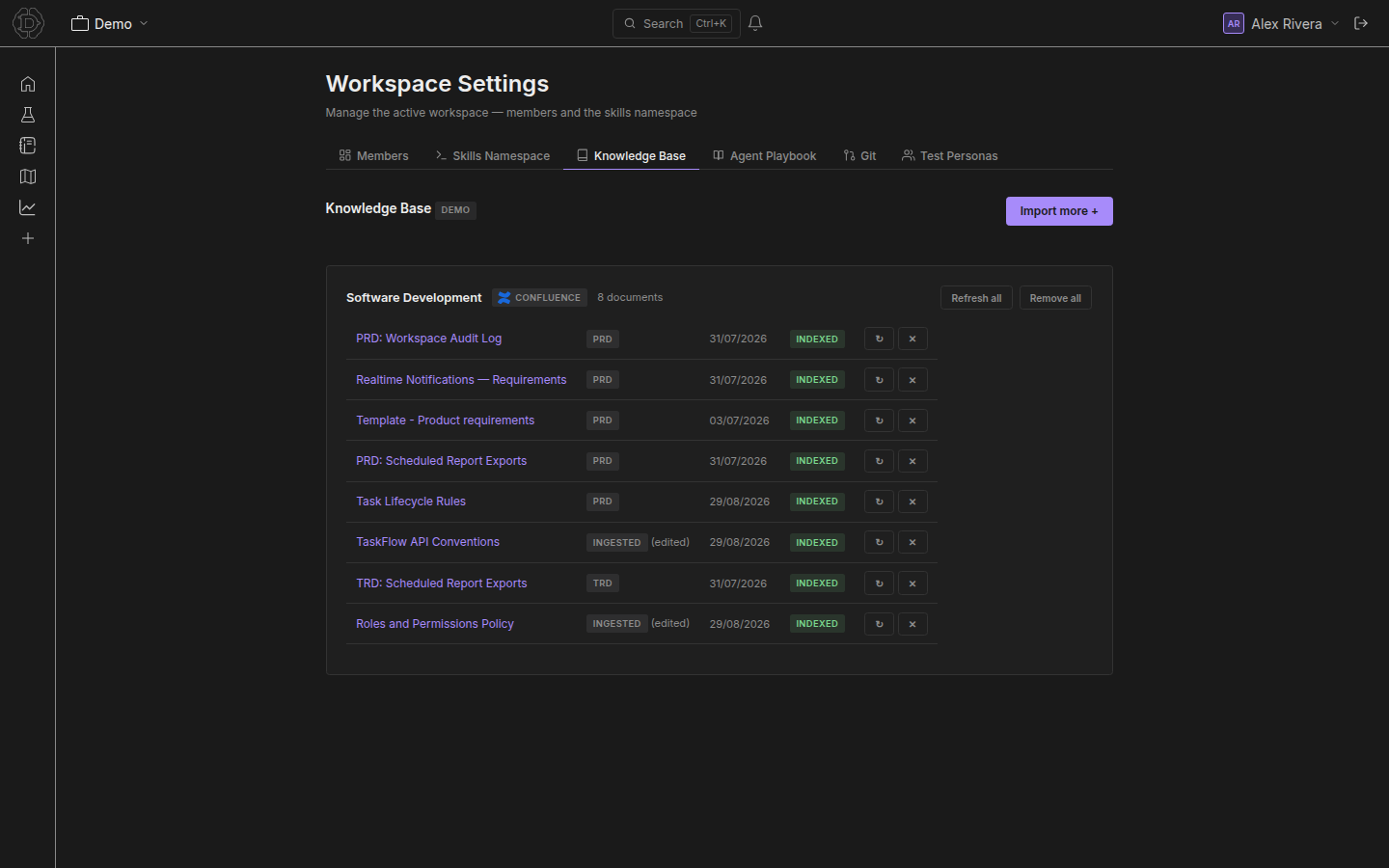
Once documents exist, the Knowledge Base tab shows a management panel with documents grouped by connector + container (space, team, or project). Per document you see:
| Field | Description |
|---|---|
| Type | The classified type (PRD, TRD, …), with a marker if you overrode the classification |
| Status | Indexed / Stale / Failed (with an error code) |
| Source updated | The document's last-edit date at the source |
Per-row actions: Refresh, Retry, Remove. Bulk actions — Refresh all and Remove all — ask for confirmation first.
Refreshing
Refresh re-fetches the document from the source:
- Unchanged content is skipped (a hash check avoids re-indexing identical content).
- A document that was deleted at the source is marked
Stale, and you're prompted to confirm removing it from the Knowledge Base.
How imported documents are used
Imported documents are retrieved as workspace-level knowledge during PRD authoring, TRD authoring, and chat — alongside your other Knowledge Base content.
When two sources genuinely contradict each other, recency wins: the newer document, by the source's last-edit date (fetched from Confluence or Linear), is treated as authoritative. Ties go to the document scoped closer to the current work. Conflicts involving imported documents are surfaced the same way as any other knowledge conflicts.
Troubleshooting
| Symptom | Cause / fix |
|---|---|
| Provider card shows as not configured | The provider's OAuth integration isn't set up for your Dezycro environment — contact your admin. |
| Actions fail with "reconnect required" | The connection's granted scopes are stale — click Reconnect on the provider card. |
Document shows Failed with an error code |
Use the per-row Retry action; if it persists, remove and re-import the document. |
Document shows Stale after a refresh |
The source document changed — refresh again — or it was deleted at the source, in which case you'll be prompted to confirm removal. |