Activity
Much of what Dezycro does for you takes a while: generating tests, crawling an app, importing documents, regenerating a Flow Map, checking PRD alignment. The Activity window keeps track of all of it in one place, so you can start something, move on, and come back when it's done.
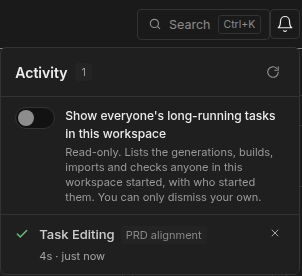
Opening it
Click the bell in the header, next to Search. The window lists your long-running tasks, newest first, with failures at the top. While anything has failed, the bell shows a red count.
Each task is one row that updates in place as it moves along: starting, running (with a short note on the current step), then done or failed. A failed row says why. Click a row to jump to where its result lives, for example the feature's workbook, the Flow Map, or the Knowledge Base settings.
The window refreshes on its own. The refresh button (Check for new activity now) fetches straight away.
Yours, or the whole workspace
By default the window shows your tasks. Turn on Show everyone's long-running tasks in this workspace to see what others started too, with who started each one. That view is read-only.
Dismissing
Dismiss a finished task with × to clear it from your list. You can only dismiss your own tasks. Tasks are kept for 30 days, then removed automatically.
What shows up
Test generation, UI test authoring, verifier builds, regression promotion, Flow Map regeneration and diagnostics, conflict checks, PRD alignment checks, reference-document processing, and Knowledge Base and skill imports.
For agents and scripts
Your coding agent can read the same list with the list_activity_items MCP tool in the verification toolset, for your own tasks or the whole workspace. Scripts can use GET /api/v1/activity-items in the public API.