Workspaces
A workspace is a container inside your tenant. Tenants have one or more workspaces; each workspace has its own projects, features, members, and verifier runs.
See Authentication & access for the tenant-vs-workspace distinction.
Creating a workspace
From the workspace switcher in the header, click + Create workspace and give it a name. The new workspace starts empty — you become its first Admin.
Workspace count is plan-dependent: 1 on Free, 5 on Pro, unlimited on Team and Enterprise — see Billing & plans.
Workspace contents
Each workspace holds:
- Projects — top-level groupings of related features
- Features — the smallest planned unit of behavior (each with PRD + TRD + workbook)
- Members — users with workspace-level roles
- Verifier runs — the per-feature verifier history
Roles
Workspace roles are independent — a user can be Admin in one workspace and Viewer in another:
| Role | Permissions | Counts as a seat? |
|---|---|---|
| Admin | Full control — manage members, settings, all content | Yes |
| Editor | Create + edit projects, features, PRDs, TRDs; run the verifier | Yes |
| Viewer | Read-only access to all workspace content | No |
See Billing & plans → Roles, seats, and what counts for how billable users are defined across workspaces in a tenant.
Finding your way around
The left rail is grouped by scope:
- Home: the active workspace at a glance.
- Project → Features and Project → Validations (the Validation Center) for the current project.
- Workspace → Overview, Notebooks, and Skills for the whole workspace.
- Metrics, and New feature.
At the bottom of the rail, Help opens these docs in a new tab, and Workspace settings appears for workspace Admins.
Switching workspaces
The workspace switcher in the header shows all workspaces you're a member of (across all tenants you belong to). Your active workspace context is preserved per browser session.
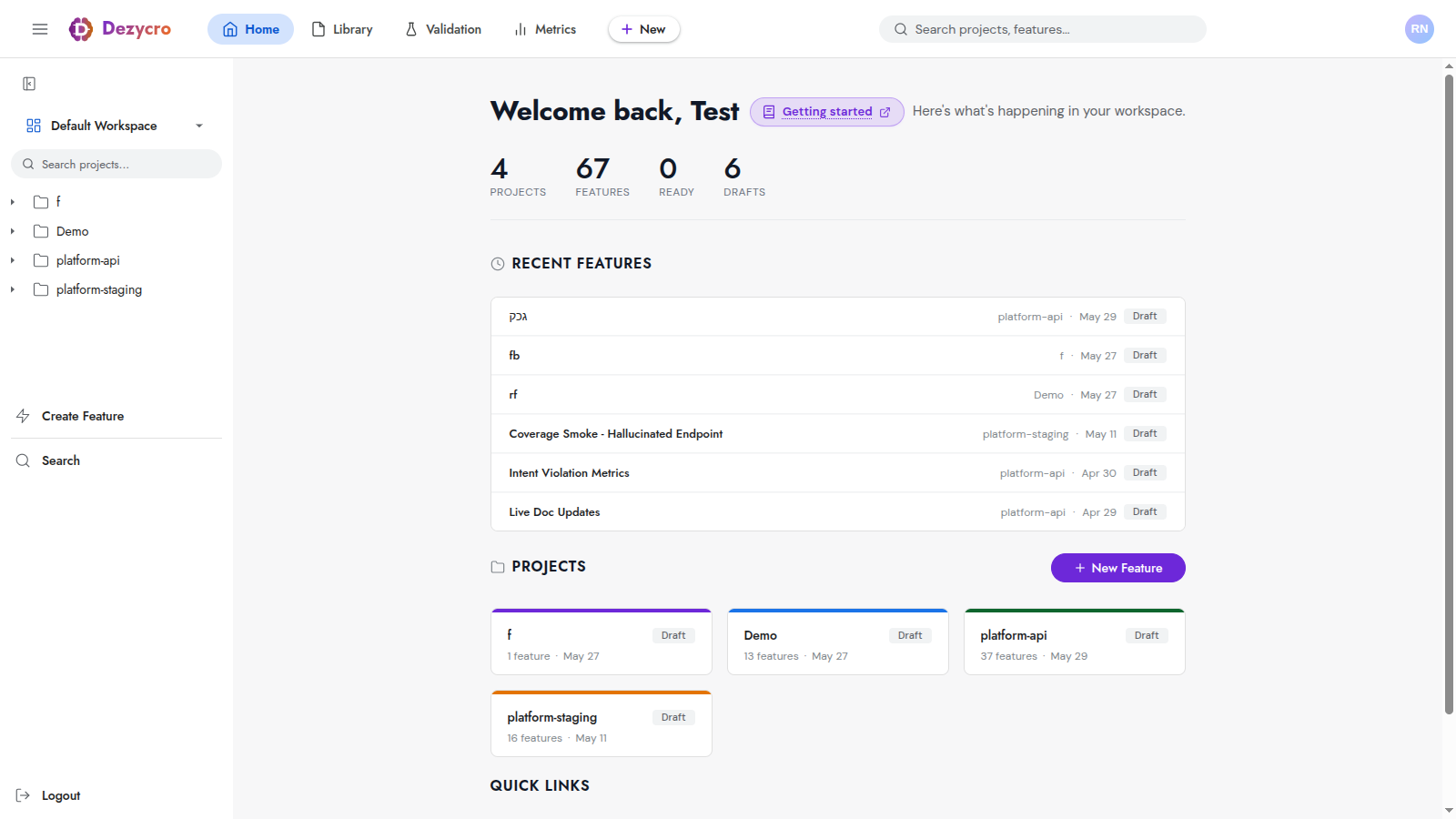
In the screenshot above, the workspace name at the top left of the header (Demo here) is the switcher; it lists your workspaces and + Create workspace. The page below is Home for whichever workspace is active.
Next to it, the project switcher jumps between the projects of the active workspace; it's searchable and pages through long lists. Project → Features and Project → Validations in the left rail reopen the project you were last in, when you're back in that project's workspace (remembered per browser). You can open any rail or account-menu entry in a new tab.
Workspace settings
Open the account menu → Workspace settings (visible to workspace Admins) to:
- Rename or archive the workspace
- Invite, remove, or change roles for members
- View the workspace activity feed
- Configure per-workspace defaults
Tenant-level settings (billing, SSO, audit log retention) live under the account menu → Organization settings and are visible only to the Tenant Owner.